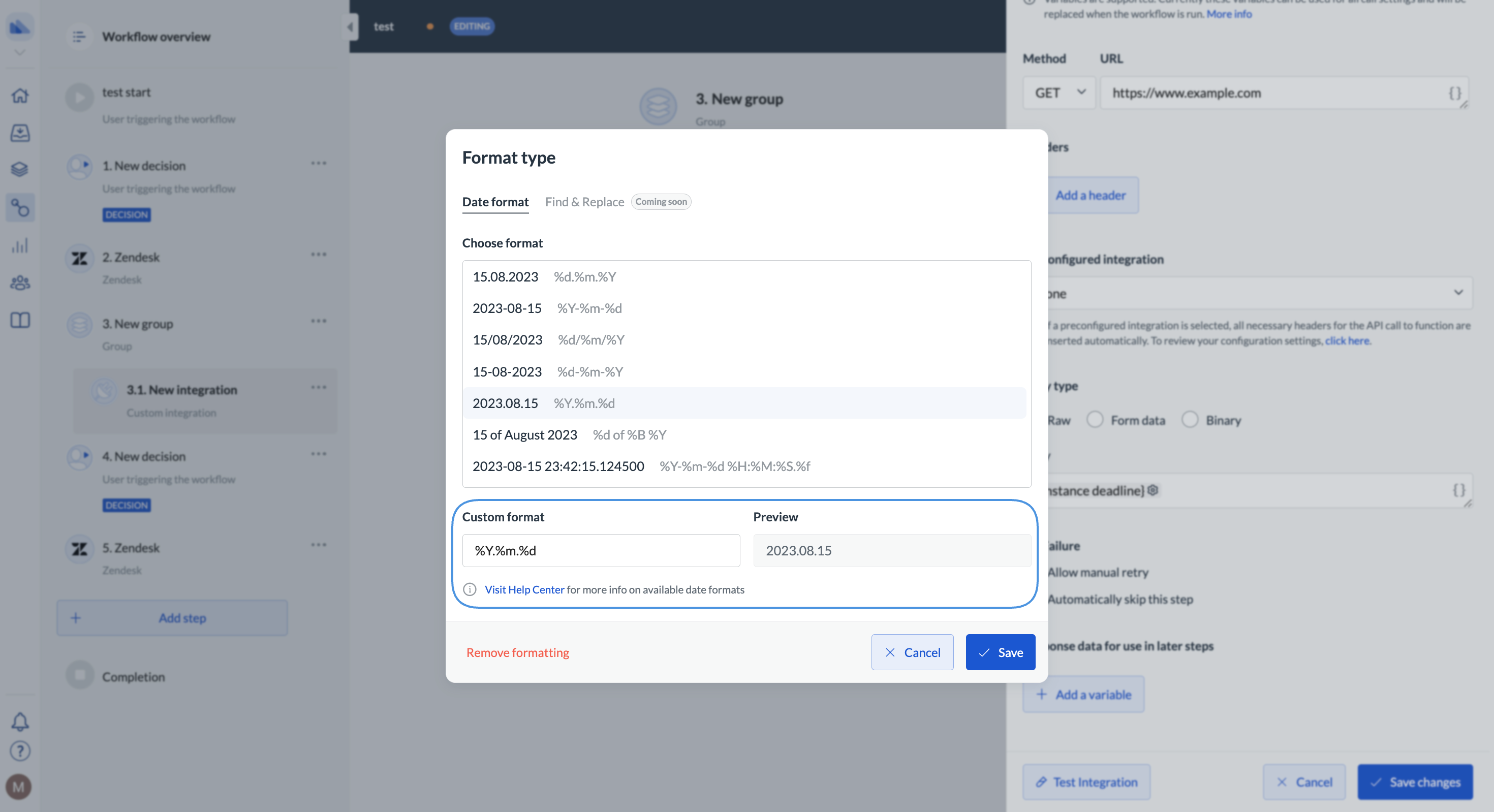
- Go to the step configuration, and pick a date data reference using the braces icon.
- Click the Cog icon.
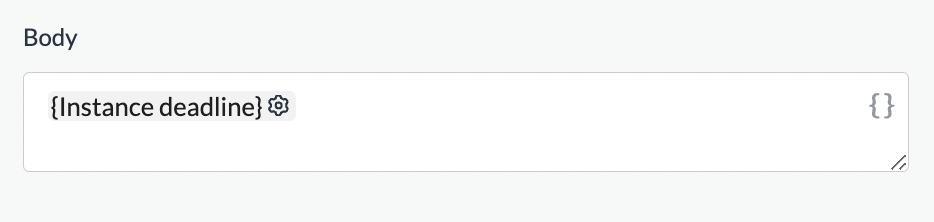
- Pick a format and click Save.
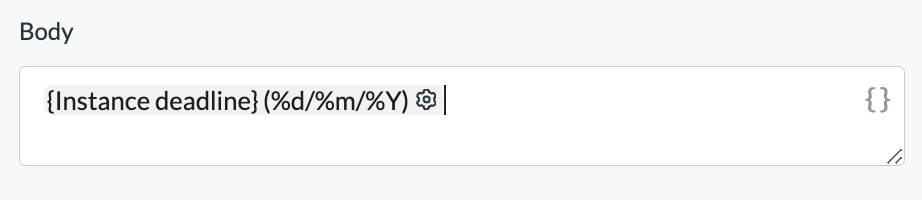
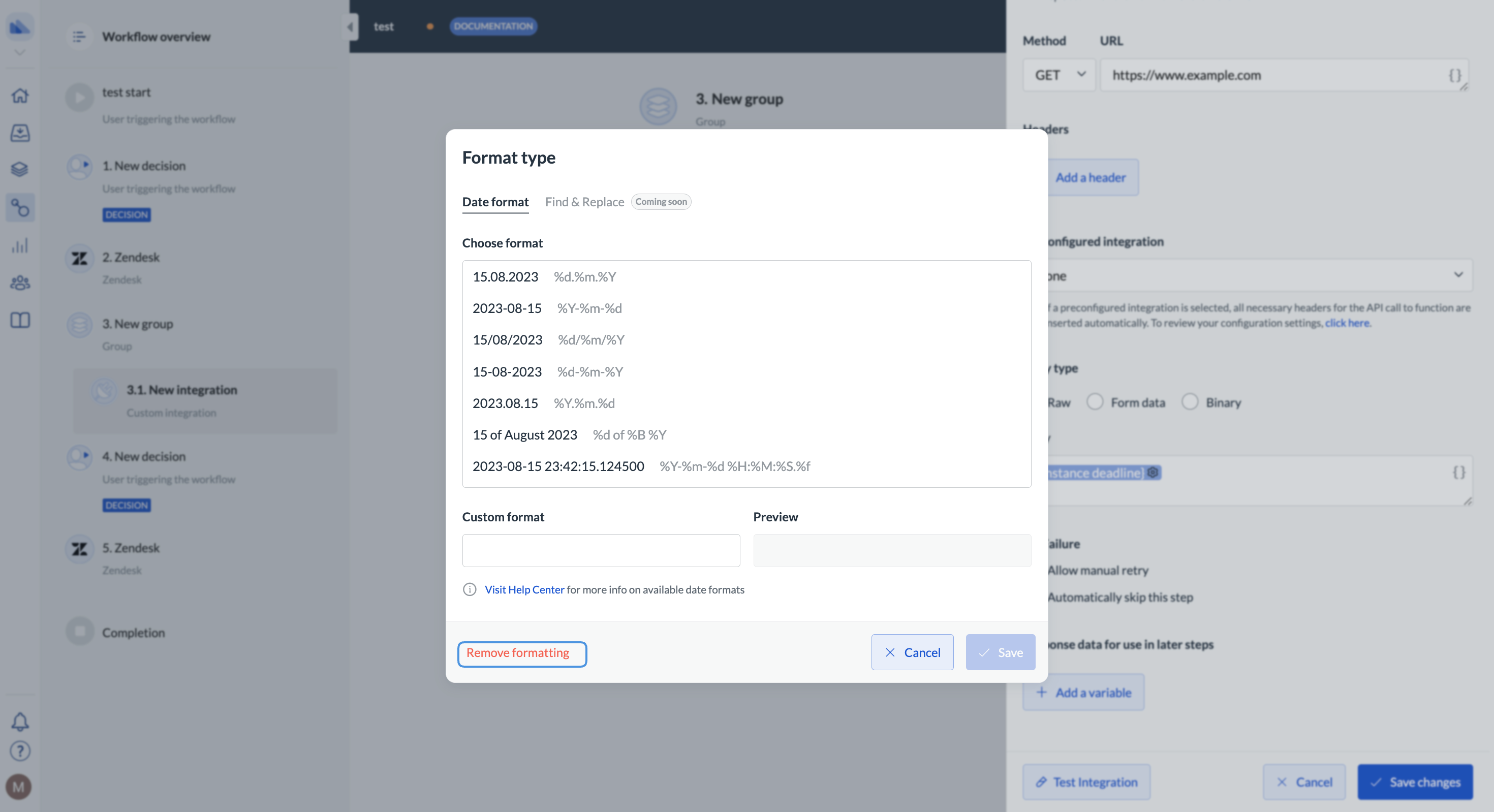
- The format you selected will show next to the reference. To remove the format, click the cog icon again and click Remove formatting. If you remove formatting, the date format will go back to the default.
What is the default for dates?
What is the default for dates?
In most cases, the default for dates is the following:
- started time - %Y-%m-%d %H:%M:%S.%f%z
- completed time - %Y-%m-%d %H:%M:%S.%f%z
- deadline - %Y-%m-%dT%H:%M:%S.%f%z
- form field output - %A, %B %d, %Y
When you add another data reference, you need to pick its date format separately. You can pick the same format or a different one.
Available date formats
Each data reference can have its own format. Refer to the table below to understand what each format contains. As you select the format for the date, you can see the preview of what the data will look like in the Preview field.