Visibility hierarchy
The visibility settings are organized hierarchically in the following top-down structure: Folder > Workflow > Instance. This means that public workflows in a private folder can only be viewed by those who can access the folder. Additionally, the workspace admin has the whole permission set.Folder visibility
Folders are the best way for you to organize your workflows. By adjusting the visibility rules, you can make folders visible for teams or colleagues that you select. Folders can be either:- Public: all colleagues can see this folder and the public workflows that the folder contains
- Private: only the admins, the folder owner, and the colleagues and teams who have access can see this folder and its public workflows
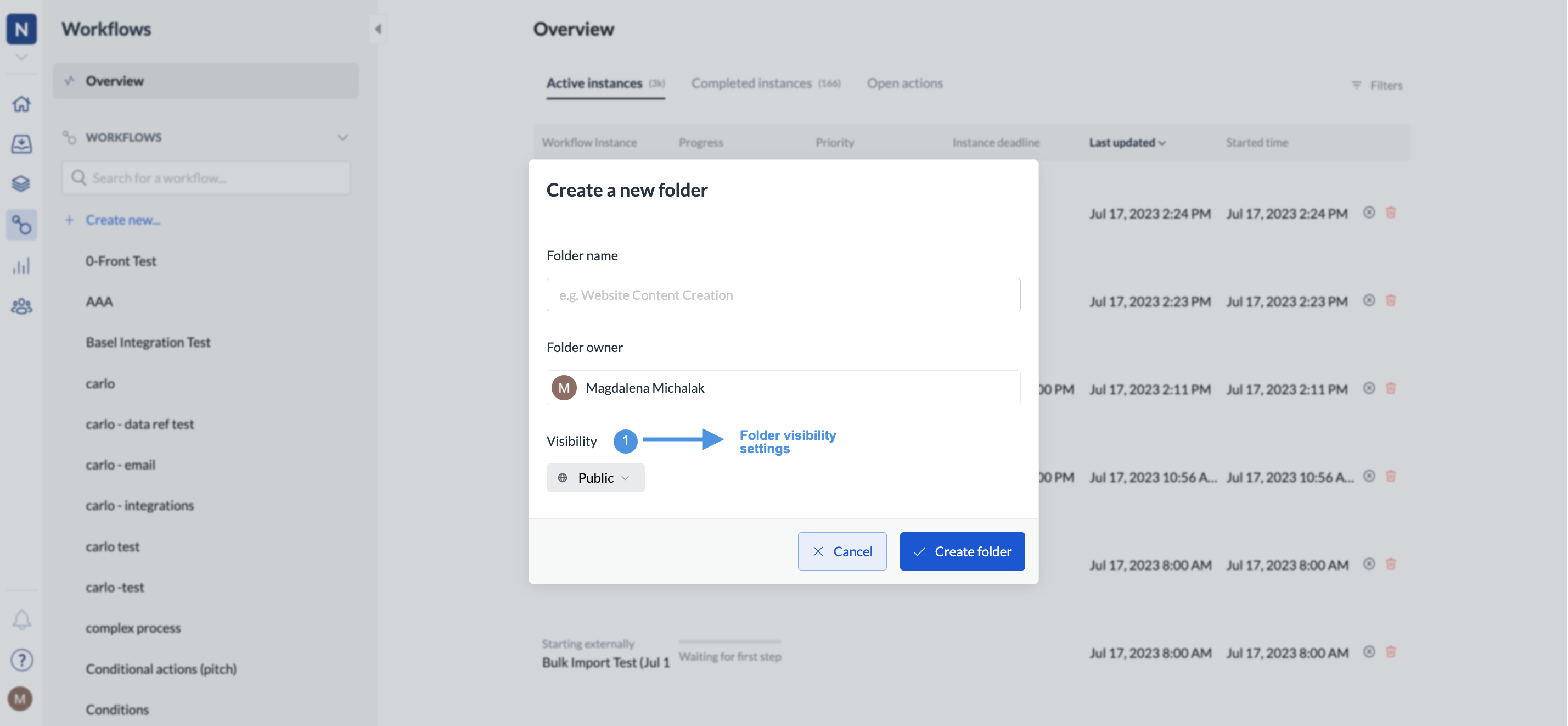
Note: After selecting Private, you can then select the people you specifically want to share this workflow with. Other colleagues, who are involved with workflows within a private folder, can only see the workflows in which they are involved.
Access to a private folder (as the owner, or with team, read, or edit access) does not let you see other people’s work on a private instance. The instance stays hidden in the instance table, in Workflows > Overview, and in Actions. If a step on that instance is assigned to you, that task still shows.
Workflow visibility
Workflows can be one of the following:- Public: all colleagues and invited external collaborators can start this workflow and see the workflow’s information
- Private: only admins, the workflow lead, and colleagues involved with this workflow (by being assigned to one of the steps) can start it. If you create a private workflow, only you and the admin can edit and delete it.
Workflow permissions
You and all your colleagues can view and create workflows, regardless of which team you belong to. However, only admins, workflow leads, or workflow editors can change or delete workflows. Workflow leads are normally the point of contact for escalations and questions. If the lead is only a business owner, the tech lead can be assigned. In this case, the tech lead will receive notifications when steps fail. You can find the workflow lead when you open the workflow to view its details. For more on workflow and tech leads, see here.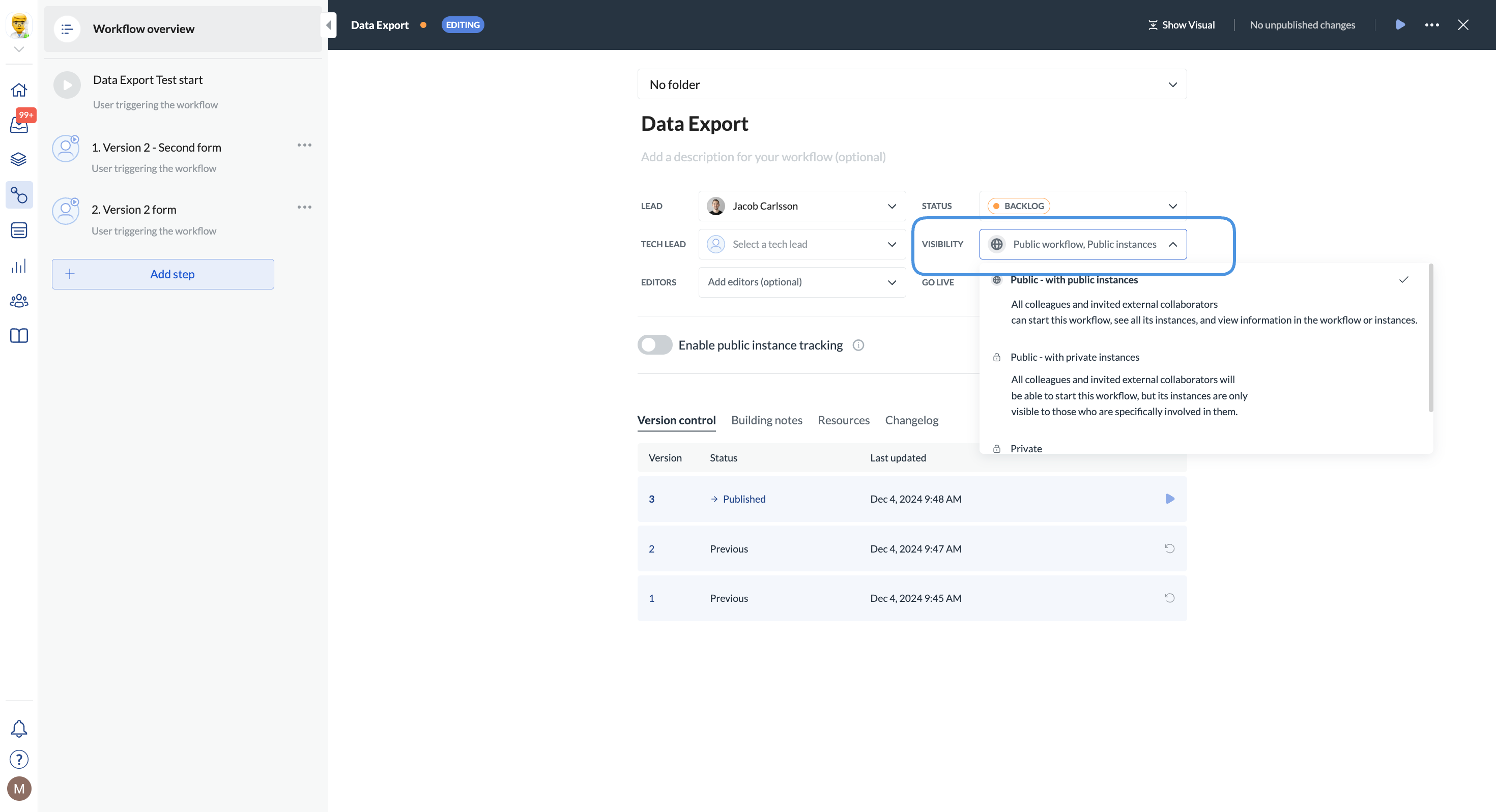
Only administrators can change workflow leads.
Instance visibility
Who can see each running instance is set in Workflow start options. You can keep instances public, limit them to the people involved, or restrict them to selected teams. For how to choose a mode, publish rules, filters on the instance table, and post-start team changes, see Instance visibility.Where instance visibility applies
The same visibility rules apply across Next Matter, not only in the workflow builder:- Home — metrics and widgets count only instances you can see.
- Workflows > Overview and Actions — instance rows, open-task counts, and related filters respect visibility.
- Task inbox — you see tasks assigned to you even when you cannot open the full instance. Inbox badges for restrictive instances count only tasks you are allowed to see.
- Notifications — instance-level updates go only to people who can see the instance. Step-assignment notifications still reach the assignee.
Workspace admins, the workflow lead, and the instance lead can always see instances. For everyone else, visibility follows the mode and Teams with access you set on the workflow or instance.
Workspace-wide instance visibility options
Workspace admins can turn off instance visibility options that workflows in the workspace may use:- Go to Workspace > Settings.
- Open the General tab.
- Under Instance visibility, switch options off. At least one option must stay allowed.
Teams, deactivation, and instance access
Teams with access can act as access groups. They do not need an inbox. When you deactivate a team (including when you delete a team that still has step assignments):- Members lose access to instances that only that team could see.
- If the team could see running workflows, you choose another team to keep that visibility. Individual colleagues do not inherit it.
- Step and conversation reassignment works as described in Build teams.
Instance permissions
Instances of a workflow can be started by any colleague that can view the workflow. When an instance has been started, it can be changed and deleted only by the process lead and workflow instance lead (the user that started the instance). Only the workflow lead can skip steps or delegate steps within the workflow.Step visibility
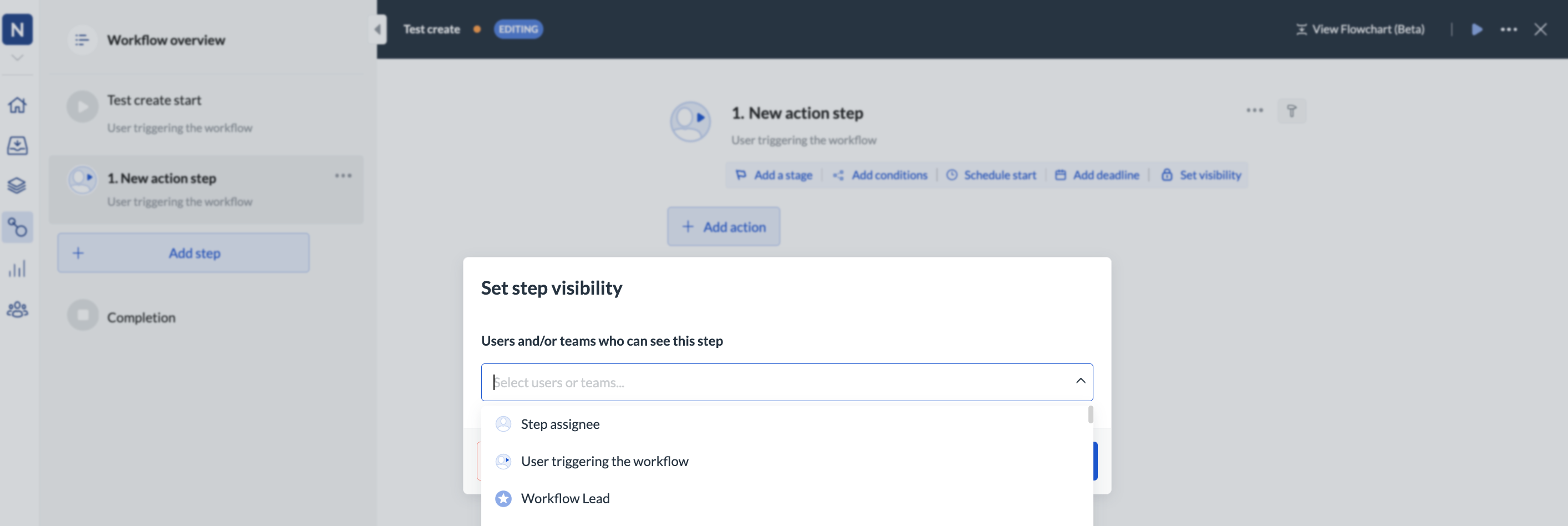
For your team and colleagues to see a step, you need to specifically give them permission to do so. If you don’t set the permissions, no one else will be able to see the step. Administrators won’t have permission to see the step either.